
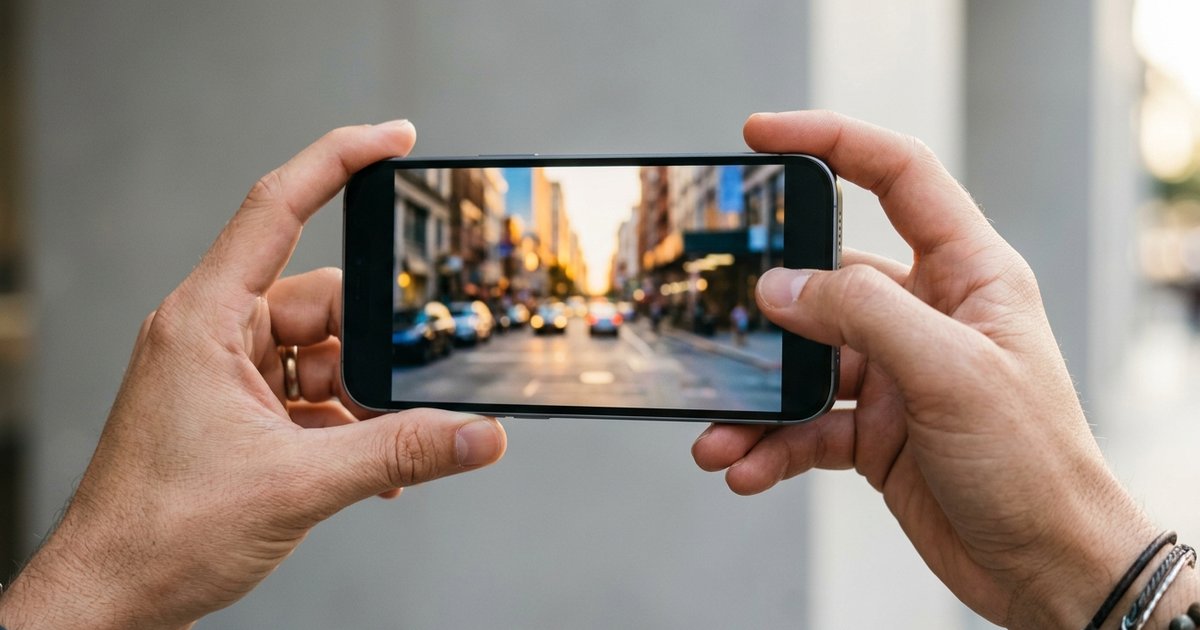
The most useful iPhone 16 tips and tricks center on the hardware that is new to this generation: the Camera Control on the side of the phone and the Action button that replaced the Ring/Silent switch. Learn the light-press gestures on the Camera Control, assign something you use daily to the Action button, set a battery charge limit, and try newer camera features such as macro shots, Spatial Audio recording with Audio Mix and Photographic Styles. The steps below follow Apple's iPhone User Guide for iOS 27, the current version at the time of writing, and note which iPhone 16 models each tip applies to.
Which iPhone 16 models these tips cover
Not every feature is on every model in the lineup. According to Apple's supported-model lists:
| Feature | iPhone 16 / 16 Plus | iPhone 16 Pro / Pro Max | iPhone 16e |
|---|---|---|---|
| Camera Control | Yes | Yes | No |
| Action button | Yes | Yes | Yes |
| Macro photos and videos | Yes | Yes | No |
| Spatial Audio video recording | Yes | Yes | Yes |
| 24 mm default Main lens with 28 mm and 35 mm options | No | Yes | No |
| Charge limit | Yes | Yes | Yes |
Apple Intelligence features such as Visual Intelligence and Clean Up are available on iPhone 16 models with iOS 27, but not in all languages or regions, and usage limits may apply.
Camera Control tips
The Camera Control is the button on the side of the phone, separate from the side button. It responds to a full click, a light press and a finger slide, which is what makes it more than a shutter button.
1. Open the camera and shoot without touching the screen
Click the Camera Control once to open Camera. Click again to take a photo, or click and hold to record video. If Camera opens in Video mode, a single click starts recording.
2. Use the light-press overlay to change settings
- With Camera open, lightly press the Camera Control twice to open the settings overlay.
- Slide your finger along the button to move between settings, then lightly press to select one.
- Slide again to adjust it, then click to take the shot.
The available settings are Exposure, Depth, Zoom, Cameras, Styles and Tone, although not every setting appears in every camera mode. Choosing Depth turns on Portrait mode if it was not already on. Your last-used setting is remembered for the next light press.
3. Choose which settings show up
If you only use Zoom and Exposure, trim the list. Go to Settings > Camera > Camera Control > Customize to choose which settings appear in the overlay and change their order.
4. Lock focus and exposure with a light press
Go to Settings > Camera > Camera Control and turn on Lock Focus and Exposure. In Camera, lightly press and hold the Camera Control until AE/AF Lock appears above the frame. Keep your finger on the button to hold the lock, click to shoot, and release to unlock. This helps when you want the exposure set on one subject while you recompose.
5. Stop accidental camera launches
If the camera opens when you grab your phone, go to Settings > Camera > Camera Control and choose Double Click instead of Single Click. For finer control, the accessibility settings for the Camera Control let you change how much pressure a light press needs and how fast a light double-press must be.
6. Make the button open something else
In the same Camera Control settings you can set the button to open the Code Scanner, the Magnifier app or your favorite third-party camera app, or choose None so clicking it does nothing. Apple's Camera Control guide covers every option.
Visual Intelligence tips
7. Click and hold to identify what is in front of you
With Apple Intelligence turned on, click and hold the Camera Control to start Visual Intelligence. Point the camera at something and you can:
- Get details about a restaurant or business, such as hours, menus or services.
- Identify plants and animals by tapping the result at the bottom of the screen.
- Translate or summarize text, or tap Add to Calendar to create an event from what you see.
- Tap the Search button to find visually similar images online.
- Tap the Ask button to ask ChatGPT about the object, if you have turned on the ChatGPT extension.
Swipe up from the bottom of the screen to close Visual Intelligence. On iPhone 16e, which has no Camera Control, Apple’s guide also lists the Action button, a Lock Screen control and Control Center as ways to activate Visual Intelligence.
8. Ask about what is on your screen
Take a screenshot by quickly pressing the side button and volume up button together. Tap the thumbnail, and buttons such as Ask, Translate and Search appear along the bottom, depending on what the screenshot shows.
Action button tips
9. Assign the action you use most
Every iPhone 16 model, including the 16e, has an Action button on the left side in place of the old Ring/Silent switch. By default it toggles Silent mode when you press and hold it. To change it:
- Open Settings and tap Action Button.
- Swipe through the actions. The name of each one appears below the dots.
- If a Menu button appears below the action, tap it to pick a specific option.
The current guide lists 13 choices: Silent Mode, Focus, Camera, Visual Intelligence, Flashlight, Voice Memo, Recognize Music, Translate, Magnifier, Controls, Shortcut, Accessibility and No Action. For Controls, Shortcut and Accessibility you must pick a specific option, or the button does nothing.
10. Turn it into a shortcut launcher
The Shortcut action can open any app or run a shortcut you build in the Shortcuts app. Because the Camera Control already handles the camera on most iPhone 16 models, the Action button is free for something else, such as starting a voice memo, turning on a Focus or identifying a song with Recognize Music. Apple's Action button guide describes each action.
Camera tips
11. Shoot macro on the iPhone 16 and 16 Plus
Macro photography is no longer limited to Pro models. On supported iPhone 16 models, move as close as 2 centimeters to a subject in Photo or Video mode and Camera switches to the Ultra Wide camera automatically. The iPhone 16e has no Ultra Wide camera, so this macro workflow does not apply to it. If you do not want that switch, tap the Auto Macro button that appears on screen to turn it off. For macro slow-motion or time-lapse video, select the mode, tap .5x and move in close.
12. Set a Photographic Style before you shoot
Photographic Styles adjust specific colors in different parts of a photo and apply to every shot until you change them. In Camera, tap the Camera Controls button or swipe up from the camera modes, tap Styles and swipe through the options. On the iPhone 16, 16 Plus, 16 Pro and 16 Pro Max, tap Customize to adjust tone, color and intensity; on the iPhone 16e, use the Tone and Warmth sliders instead.
To change the style later in the Photos app, the photo must be captured with High Efficiency image capture, which you can turn on in Settings > Camera > Formats. To go back to a neutral look, choose Settings > Camera > Photographic Styles, then Use Standard.
13. Clean up wind and background noise in videos
iPhone 16 or later uses Spatial Audio to record video and also lets you choose Studio or Mono. To switch formats, go to Settings > Camera > Record Sound and choose Spatial Audio, Studio or Mono. On iPhone 16 or later, wind noise is automatically reduced when recording with Spatial Audio or Stereo.
After recording in Spatial Audio, open the video in Photos, tap the Edit button, then tap Audio Mix:
- In-Frame reduces sounds and voices from sources outside the frame.
- Studio reduces background sounds and reverb.
- Cinematic puts voices on a front-facing track and leaves environmental sound in surround.
- Standard plays the original audio.
Drag the slider to control how strong the effect is.
14. Pick your favorite focal length on iPhone 16 Pro
On iPhone 16 Pro and Pro Max, the Main camera defaults to 24 mm, and you can add 28 mm and 35 mm as extra lenses. Make sure Settings > Camera > Formats > Photo Mode is set to 24 MP, then go to Settings > Camera, tap the Main or Fusion camera option below Photo Capture, turn on the additional lenses and choose a default. In Camera, tap the Main camera lens button to switch between them.
15. Keep your camera settings between sessions
Camera normally resets some options each time you open it. Go to Settings > Camera > Preserve Settings and turn on the ones you want to keep, such as Camera Mode, Photographic Style, Macro Control or Exposure Adjustment.
Photo editing tip
16. Remove distractions with Clean Up
In the Photos app, open a photo, tap the Edit button, tap Tools, then tap Clean Up. Tap, brush or circle the object you want removed. Some items are highlighted automatically. Tap the Done button when finished, or reopen Clean Up later and tap Reset to undo it.
Battery tips
17. Set a charge limit
On iPhone 15 and later, you can cap charging at a set percentage, such as 80%, to help reduce battery wear if you charge often or leave the phone plugged in for long periods. Go to Settings > Battery > Charging and choose a percentage. Your iPhone will still occasionally charge to 100% to keep the battery percentage accurate.
Need a full battery for a long day? Choose 100% and tap Allow Until Tomorrow; the limit returns at 6:00 a.m. You can also tap Charge to 100% in Battery settings to override the limit right away. See Apple's page on setting a charge limit for details.
Everyday shortcuts
18. Rearrange Control Center
Swipe down from the top-right corner to open Control Center, then tap the Add button to edit it. You can drag controls to new positions, resize them with the handle in the lower-right corner, remove ones you never use and tap Add a Control to bring in new ones. Keep swiping down to reach additional groups of controls.
19. Take a full-page screenshot
After taking a screenshot, tap the thumbnail and tap Full Page to capture content beyond the visible screen, such as an entire webpage in Safari. Drag the crop handles to keep only the part you need.
20. Disconnect Wi-Fi without turning it off
Tapping the Wi-Fi button in Control Center disconnects you from the current network but leaves Wi-Fi on, so AirDrop and AirPlay keep working. To switch Wi-Fi off completely, use Settings > Wi-Fi.
Where to start
If you only try three things this week, make them these: set the Action button to an action you use every day, customize the Camera Control overlay so it shows only the settings you change, and set a charge limit if your phone spends long stretches on a charger. Menu names can shift between iOS updates, so if a step looks different on your phone, check that it is running the latest version of iOS.
